
Your light, not studio light
The colour is rendered under the light in your photograph, which is the only light that matters.
Colour
A paint chip lies. It is two centimetres square, held at arm’s length, under a different light than the room it is going in. See the colour on the whole wall instead.
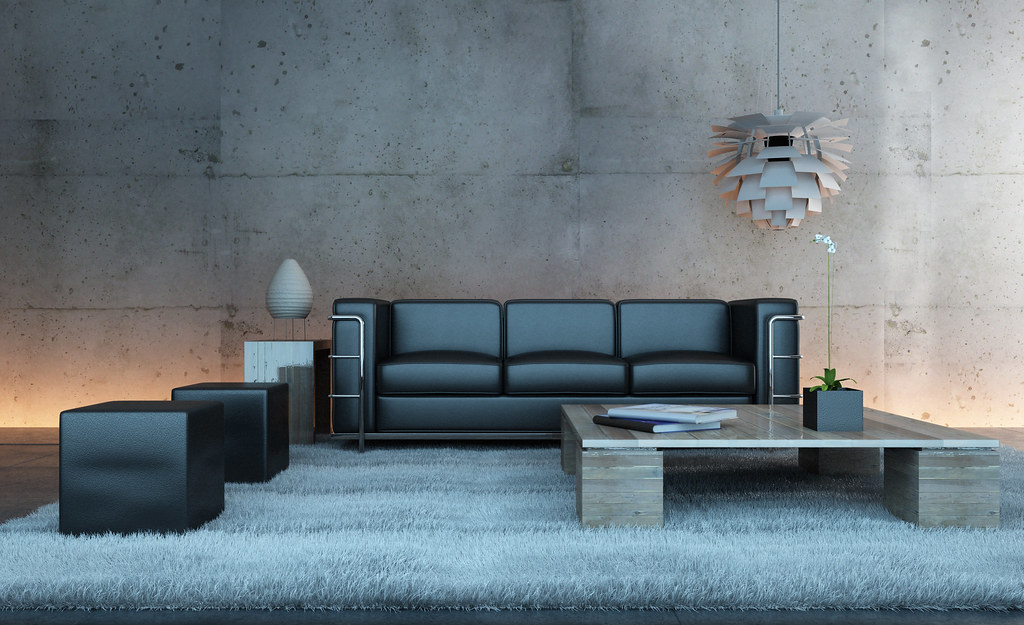 BeforeAfter
Step by step
Your photoA photograph of the room or the facade you want to test a finish on.
One surface at a time, from the studio’s own list, and what it should become in your own words. Everything else in the frame is left exactly as photographed.
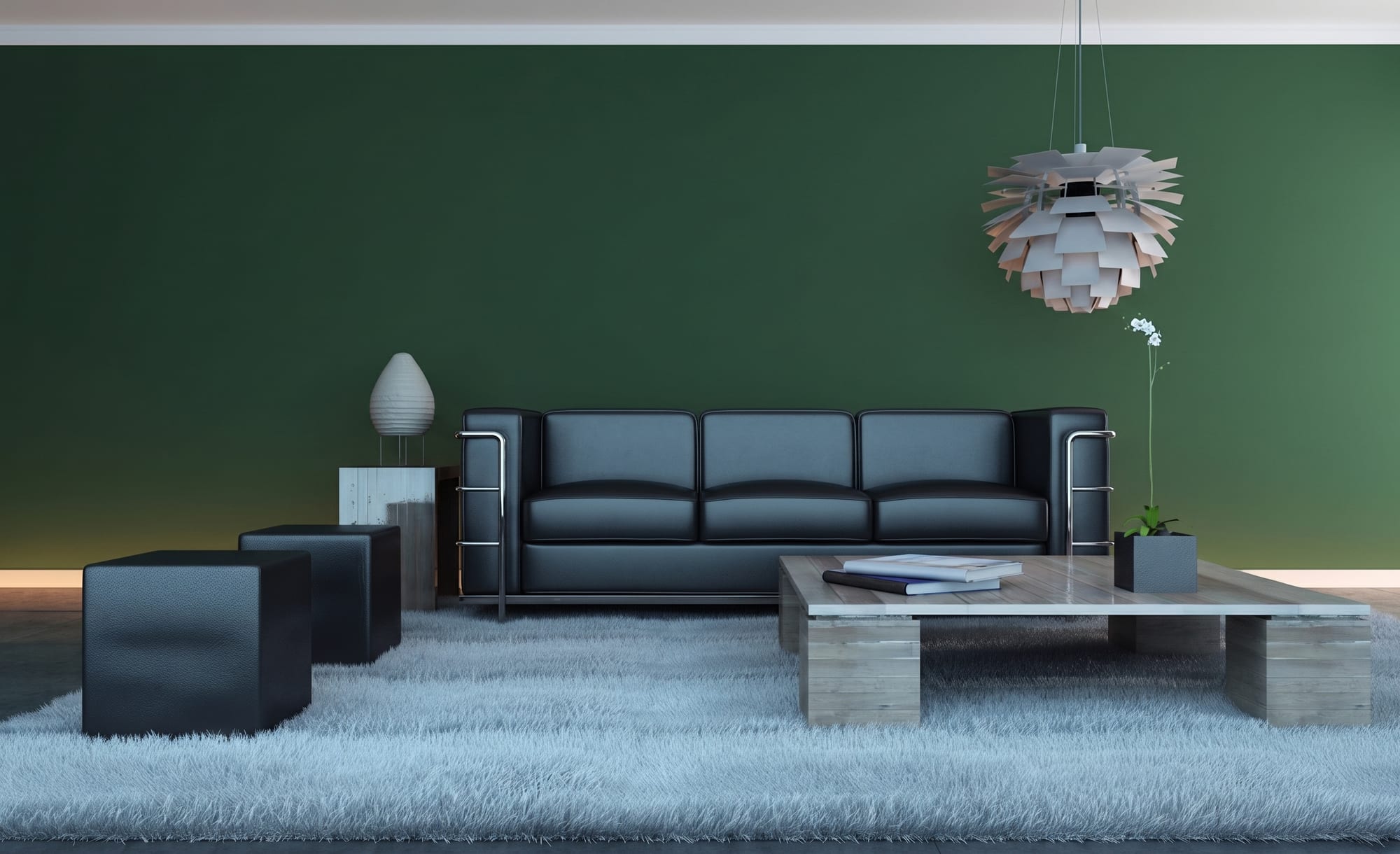 What came back
The same photograph with the new surface on it.
Every picture here is this page’s own example: the file that was uploaded, the setting that was used, and the result exactly as it came back. Nothing was retouched afterwards.
Try it now
Drop in a photo and Miravely opens straight into paint visualiser, no preset picking. About 30 seconds.
Drop in a photo
JPEG, PNG or WebP, up to 40 MB.
Settings
Settings
From 12 credits
This list comes out of the studio itself rather than being typed onto the page, so these are the engines you will be offered and the price you will be charged for each quality.
Nothing is generated until you press the button, and the cost is shown before that, never after. A new account starts with 72 free credits to try it with, and a generation that fails is refunded.
See what a credit costsThe colour is rendered under the light in your photograph, which is the only light that matters.
Large areas of colour read differently from small ones. This is the single most common decorating mistake.
Walls, woodwork and ceiling take their own colours so you can test a scheme rather than a shade.
Questions
Yours. Miravely renders the colour under the light already in your photograph, which is the only light the room will actually be seen in.
Yes -- Miravely can give walls, woodwork and ceiling each their own colour, so you are testing a scheme rather than a single shade.
72 free credits, enough for a couple of photos or one short clip. No card needed.